4. Write your own flows
The editor#
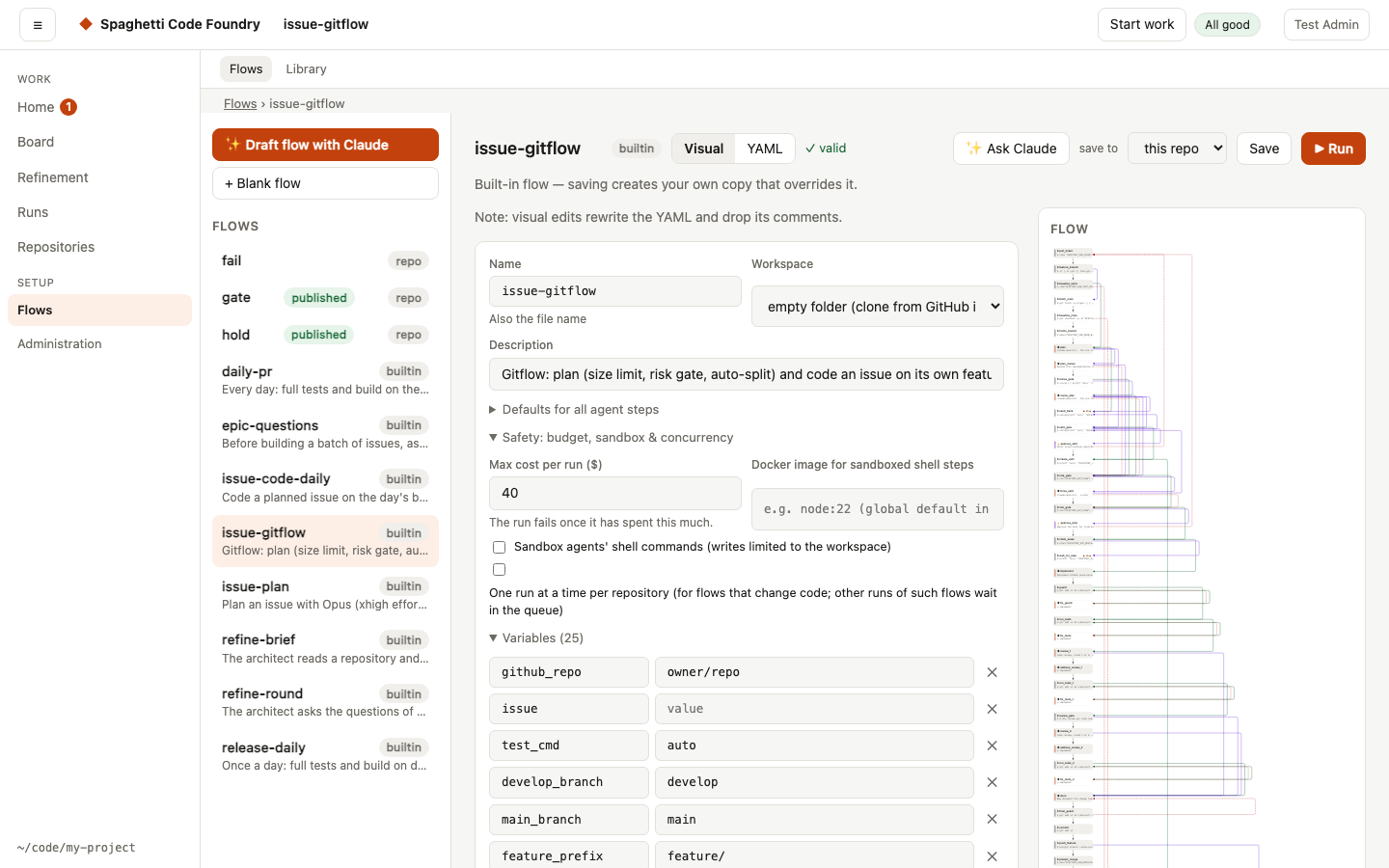
The header always shows which flow you edit and its scope (builtin, repo, global or not saved yet), a text state (Saved or Unsaved changes), whether the flow is valid (Valid, n problems or Checking…; click it to go to the problem list) and where Save writes ("Saves to this repo"; for a built-in flow "Saves your own copy to this repo").
Edit a flow visually or as YAML (switch at the top). There is one main button: Save when the flow is new or has changes, otherwise Test run. Ask Claude, Save to and Delete flow are in the More menu. Ctrl/Cmd+S saves, and leaving with unsaved changes asks.
The Overview button opens the graph of how steps connect: grey = next, green = on success, red dashed = on failure, purple = route. Click a node to select the step. The choice is remembered; at 1100 px wide and below the overview starts closed and opens above the form. The list on the left has a search box that filters by name and description.
In the visual editor, the structure list shows Flow settings first, then one row per step: number, id, type icon, a one-line summary, and marks for "only via jumps" and "has a problem". Select a row to edit it. The inspector next to the list shows only the selected item, either the flow settings or one step. Add step (Agent, Shell, more types, + From library), move up/down, duplicate, delete, Save as block and rename work from the list and from the inspector header. At 1100 px wide and below, the list is above the inspector.
A step shows only the settings of its type: an agent step its prompt and model, a shell step its command, an approval step its question, a parallel step the step picker, a sub-flow step the flow and its variables. Less used options are in groups that start closed and open by themselves when they hold a value: Routing (on success, on failure, routes, only via jumps, pass/fail patterns, resume point), Limits (max visits, timeout, budget), Sandbox & access (shell and agent steps) and Model & agent settings (agent, provider, permission mode, allowed tools, extra system prompt, continue session). An approval step has no model, sandbox or tools group. A parallel or sub-flow step has no pass/fail patterns unless a value is already set; then it stays visible and editable. A step of an unknown type says to edit it in the YAML tab. The flow settings use groups too: basics, Defaults for agent steps, Safety, Variables and Publish to users. Clicking a node in the overview, or a problem, opens that step, focuses the field and opens the group that holds it.
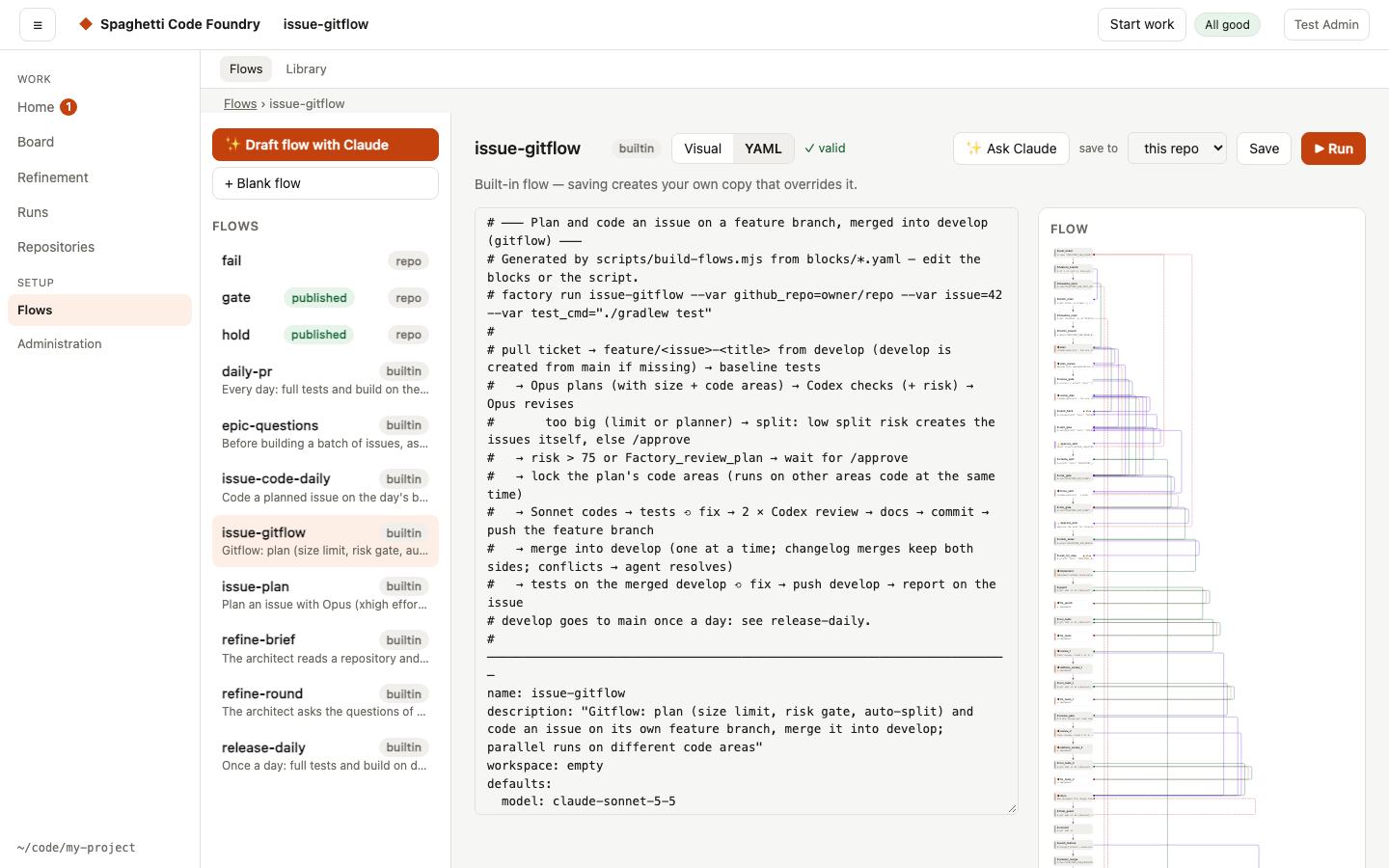
- Save to — this repo (
<repo>/.claude-factory/flows/, shared with your team through git) or global (~/.spaghetti-code-foundry/flows/, just for you). Saving a built-in flow creates your own copy that overrides it. - ✨ Draft flow with Claude — describe what you want and Claude writes the YAML. Ask Claude changes the open flow the same way.
- + From library inserts a block from the Library.
- Errors and failed saves. Errors that stop a save or a run are shown above the editor. If a save, delete or run fails, the reason is shown and your changes stay; use Retry to save again. Discarding, overwriting and deleting ask for confirmation in a dialog.
- Publish to users — choose whether users may start this flow ("Available to users"), the
name and description they see, and for each variable whether it is hidden (your value is
used), fixed (shown, cannot be changed) or user fills in (with a label, help text,
"Required" and a default). Tick Own default to give the input its own default, even an
empty one; unticked, it uses the flow's value. The version goes up by itself when you save a
change. A published flow cannot have sub-flow steps, and a shell step must read an input as
$FACTORY_VAR_NAME, not{{vars.name}}. An approval message is shown to users, so it may only use{{task}},{{vars.<name>}}of a variable users see (fixed or input, orgithub_repoorissue) and{{steps.<id>.output}}; the flow is refused on save otherwise. - Problems — when the flow is not valid, the editor lists each problem on its own row. Click a row to go to it. In the visual editor, a problem in a step selects that step and focuses the field; a problem in defaults, vars, limits, sandbox or publish opens that section. In the YAML tab, the cursor goes to the line. A YAML syntax error links to its line and column. A problem without a place is plain text. If you have edited the text since the check, rows do nothing until you check again.
Let any AI write a flow#
undefined is a complete, self-contained description of the flow format written for AI assistants: every field, step type, template and environment variable, the common patterns (test/fix loops, review gates, asking a human, pull requests), a checklist and a full example. Give it to any assistant — ChatGPT, Claude, Gemini, Codex or a local model — and describe the flow you want:
scf flow-guide > flow-guide.md # or copy docs/FLOW_AUTHORING.md- Paste (or attach) the guide in a new chat, then write what the flow should do, e.g. "Opus plans a database migration, I approve the plan, Sonnet implements it with pytest tests, up to 3 fix rounds, Codex reviews once, then push the branch and open a PR."
- Save the YAML it answers with as
<repo>/.claude-factory/flows/<name>.yaml(or in~/.spaghetti-code-foundry/flows/). - Check it:
scf validate <name>— it names the field and step for anything that is wrong; paste that back to the assistant to fix it. Then open it in the editor to see the graph.
✨ Draft flow with Claude in the editor uses the same guide, so both ways produce the same kind of flow. The examples in the guide are checked by the test suite, so they always match the current format.
Step types#
| Type | What it does |
|---|---|
Agent (type: claude) | Runs Claude Code or Codex with a prompt |
| Shell | Runs a command; exit code 0 = success |
| Approval | Pauses until a person approves (→ on success) or rejects (→ on failure) |
| Parallel | Runs several agent/shell steps at once; succeeds when all succeed |
| Sub-flow | Runs another flow inline, in the same workspace |
Repository access (shell steps). Tick Needs repository access (repo_access: true) on a
shell step that calls gh, or uses git clone, fetch, pull, push or ls-remote, or calls a
helper script that does. Never tick it on a step that runs tests or the build, and not together
with Run in Docker or in a parallel step. A marked step signs in with the token you stored for
the repository under My repositories: its token, its deploy key or the GitHub App (see "What runs sign in with" there); the built-in flows
and the blocks of the library are already marked. Flows you wrote yourself that call gh or push need the flag. In a step
without it the Foundry's own access is used, not your repository's token. If the sign-in fails
in a marked step, the run ends there and on_failure is not followed. A call you tolerate on
purpose must send its error output to /dev/null, because a refusal on stderr fails the step.
Controlling the path#
Steps run top to bottom. Each step can change that:
- On success / On failure —
next(default on success),fail(default on failure),end(finish as succeeded),stop(pause for a human), or a step id to jump to. - Routes — on success, jump to a step when the output matches a pattern, e.g.
^ROUTE: small→quick_fix. The first match wins. - Pass if / Fail if — patterns that decide success from the output, e.g. an agent that must
end with
VERDICT: APPROVE. - Only reachable via jumps — the step is skipped in the normal order (for fix-up handlers).
- Max visits — how often a step may run in one run (default 5); guards loops like test → fix → test.
- When resumed, restart at — for a step that stops the run, where a resume should continue.
A typical fix loop:
steps:
  - id: implement
    type: claude
    prompt: "{{task}}"

  - id: run_tests
    type: shell
    run: npm test
    on_failure: fix_tests

  - id: fix_tests
    type: claude
    jump_only: true
    max_visits: 3
    prompt: |
      The tests fail. Fix the code.
      {{steps.run_tests.output}}
    on_success: run_tests
Passing information between steps#
In agent prompts you can use:
| Template | Value |
|---|---|
{{task}} | The run's task, followed by the answers given on the run page (also $FACTORY_TASK / $SCF_TASK) |
{{vars.name}} | A flow variable |
{{steps.<id>.output}} | Output of an earlier step (also .ok, .exit_code) |
{{learnings}} | Lessons saved by earlier runs in this repo |
{{run.history}} | Which steps ran so far and how they ended |
{{workdir}}, {{run.id}}, {{run.branch}} | Where and what this run is |
Shell commands may only template trusted values ({{vars.*}}, {{workdir}}, {{run.*}}).
Task text and step outputs could contain anything, so shell steps read them from environment
variables instead: $FACTORY_TASK, $FACTORY_OUT_<STEP_ID>, $FACTORY_VAR_<NAME>,
$FACTORY_RUN_ID, $FACTORY_BRANCH, $FACTORY_NEXT_<REASON>, $FACTORY_FIRST_<REASON>, $FACTORY_FIRST_NOTHING, $FACTORY_FIRST_INFO and the other report lines (also as $SCF_…).
An agent step can continue the session of an earlier agent step ("Continue session of"), so it remembers the conversation.
Variables#
Flow variables (vars:) have defaults in the flow and can be overridden per run, per watcher,
or per repository in <repo>/.claude-factory/config.yaml:
vars:
  test_cmd: ./gradlew test
The editor keeps empty values (issue: ""), so a variable you have just added stays.
A flow author can describe each variable in var_info (label, help, kind, range; see "Describing variables" in docs/FLOW_AUTHORING.md). A flow whose var_info does not fit its variables cannot be saved, and the editor shows the problem in the Variables section. The description does not change the fields of a run yet. A watcher's form shows one field per described variable (see "Add watcher" in section 6).
The block library#
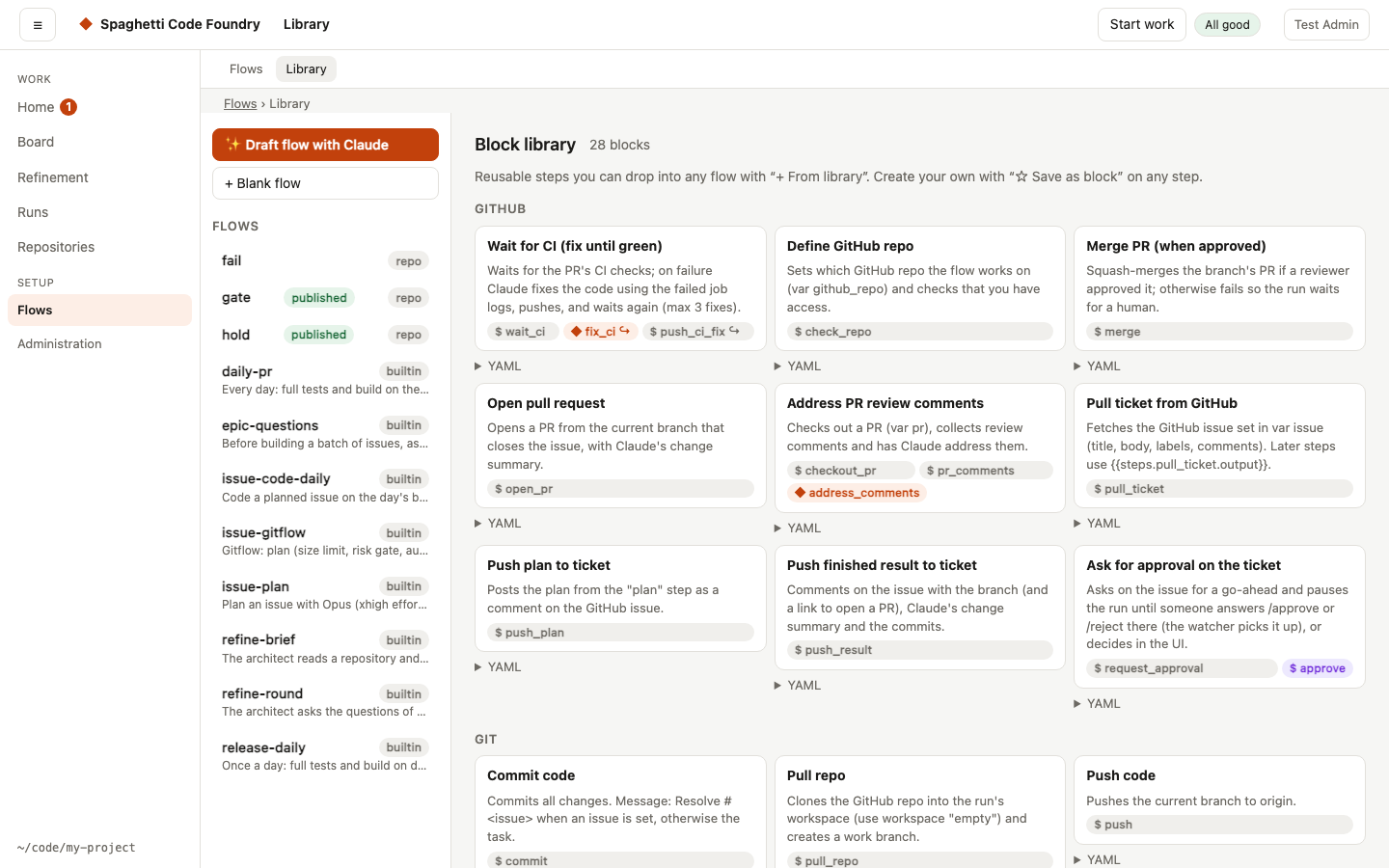
Blocks are ready-made groups of steps: pull a GitHub issue, plan, code, run tests with a fix
loop, code review, cross-review by Codex, commit, push, open a PR, wait for CI, secret scan,
Jira and Linear, and more. The block Architect (charter) holds the architect's role as one
text; the architect steps of Refinement take it from there. Insert one with + From library in the editor: search by text, narrow by category (each block shows its scope), and pick one. A preview shows the steps it adds (id and type), the variables it adds, and the ids that will be renamed because the flow already has them. Nothing changes until you press Insert; Back returns to the list. The first inserted step is selected. A block that is not valid is listed with its error and cannot be inserted. Turn any step into
your own block with ☆ Save as block. Blocks that call gh or the remote come with Needs
repository access ticked. A flow built from blocks before this version has copies without it, so
tick it there or insert the block again.
The Library page has the same search and category filter, shows how many blocks match ("3 of 12 blocks"), and says "No blocks match." with Clear filters when none do. You can view the YAML of a block and delete blocks that are not built in.
The Library shows a loading state, an empty state and a failure with Retry. A failed delete or save keeps the form with what you typed. The Models page still shows Routing when the providers cannot be checked, and a model test result stays after Reload.