1. Start
Install it (see the README), then start the UI from the repository you want to work on:
cd ~/code/my-project
scf ui
The UI opens at http://localhost:4777. By default it only listens on your own machine; see Access from other computers. The path in the top-right corner is the repository runs work on by default.
First start. The first time you open the UI there is no account yet, so it shows
Create the admin account: enter a name, an e-mail and a password (12 to 200 characters, not a common one,
twice). That signs you in. You can also create the admin in a terminal with
scf user create --admin; scf ui and scf serve print a hint while there is no admin. After
an upgrade from a version without sign-in, do this once; nothing else changes. The CLI, the
watchers and runs that are already going do not need an account.
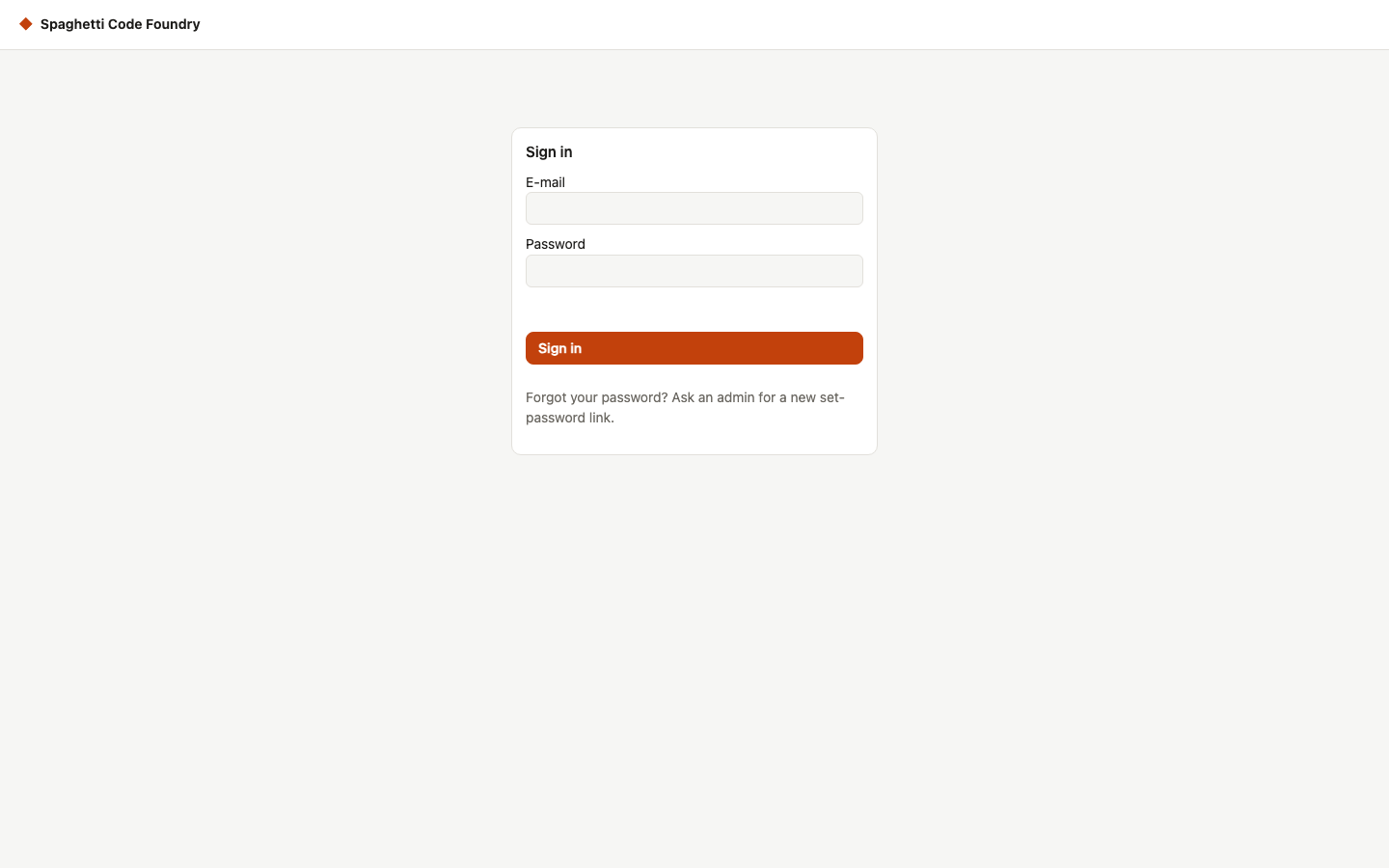
Sign in and out. After that, the UI shows a sign-in form. Your name and a Sign out
button are in the top bar. You stay signed in for 7 days, or until you sign out. A password
change or a block (scf user password, scf user block) signs that account out at once. If you
are blocked, you cannot sign in. If the session ends while a page is open, the next action
brings you back to the sign-in form.
Forgot password. The sign-in form says so: ask an admin for a new set-password link (the admin
uses Reset password on the Users page), or run scf user password <e-mail> on the machine.
Change password. Change password in the top bar asks for your current password and the new one (twice). The new password follows the same rules (12 to 200 characters, not a common one). Your session stays; every other session of your account is signed out. A wrong current password counts like a wrong sign-in (see "Wrong passwords" in Settings and safety).
Appearance: theme and density. Appearance in the top bar, next to Change password, opens a dialog with two choices. Theme is System (follows your device), Light or Dark. Density is Comfortable or Compact. A choice applies at once, with no reload. The chosen option has a check mark and is announced as pressed, so it does not depend on colour. The choice is kept in this browser, per account, and is not sent to the server: a second account in the same browser has its own, and another browser starts with System and Comfortable. The sign-in form uses the last choice. Other open tabs pick up a change when they reload. If the browser blocks storage, the page still works with System and Comfortable.
Set-password link. A new account may get a link instead of a password. Open it in the browser's address bar, type the password twice, and press Set password. Then sign in with it. The link works once and for 24 hours. If the page says "this link is not valid any more", ask your admin for a new one.
| Place | Pages in it | What it is for |
|---|---|---|
| Home | — | What needs you, what is running, what finished, and the best next step; the app opens here when something waits. The old address #/your-turn still works. See Home |
| Board | — | Where every story is, in columns per repository |
| Epics | — | How far each epic is and when it will be finished |
| Refinement | — | Where a rough idea grows into a story before it goes to the backlog |
| Runs | — | Everything that ran or is running; the ones that need you on top |
| Repositories | — | The repositories you work in, and how the Foundry signs in to them |
| Flows | Flows, Library | Flows: Your flows and the built-in ones: edit, create, run. Library: Reusable blocks of steps to drop into flows |
| Administration | Overview, Problems, Watchers, Models, Dashboard, Users, All repositories, Credentials, Audit, Settings, Maintenance | Overview: What needs attention, on one page. What the monitor found. Watchers: Automatic runs from GitHub issues, PR comments, red CI, or a schedule. Models: Which agents and models are available, and which model runs which step. Dashboard: Spend, success rate, where runs fail, eval results. Users: The accounts: add, edit, block and delete them (admins only). All repositories: The repositories of all accounts, their settings, and transfer to another account. Credentials: The stored credentials of all accounts, without any secret. Audit: Who did what, with filters and a CSV export (admins only). Settings: Budget, safety, notifications, bot identity. Maintenance: Clean up old run workspaces |
Navigation (admin display). A sidebar on the left groups the places: Work has Home, Board, Epics, Refinement, Runs and Repositories; Setup has Flows and Administration. Start work is a button in the top bar, not a place. The top bar also has the menu button, the name of the page, the health chip and your account menu (Change password, Sign out). Press the health chip to open or close the full health line; it opens by itself when something is wrong. The number of items waiting for you shows on Home and on the menu button. The menu button closes and opens the sidebar, and the browser remembers your choice. On a narrow screen (below 768 px wide) the sidebar is a menu over the page: Close menu, Escape, pressing outside it or choosing a link closes it, and Tab stays inside it while it is open. The current place is marked for screen readers; the main area is named after the page, focus moves to it after each page change, and the new page is announced. Skip to content is the first control. Under the top bar a second row groups the pages of one place: Repositories (My repositories only), Flows (Flows, Library) and Administration. Administration has labelled sections: Operations (Overview, Problems, Watchers, Models, Dashboard), People and access (Users, All repositories, Credentials, Audit) and System (Settings, Maintenance). A line of breadcrumbs shows where you are on detail pages (one run, one flow, one board, one epic, one refinement session); the tab title names the page. An address that is empty or unknown opens Home. All old addresses keep working.
Small screens. Below 768 px (phones) the menu is a drawer, pages have one column and a dialog is a sheet at the bottom of the screen: full width, at most 90 % of the height, scrolling inside, with Close always in reach. From 768 to 1023 px (tablets) you get the sidebar and one column; from 1024 px the full layout. On a touch screen every button, link, field, menu item and table action is at least 44 × 44 px, with space between them. The buttons of a page (the toolbar) wrap below the title, and the main action stays visible. Long repository names and messages wrap; logs and diffs scroll inside their own box. The page itself does not scroll sideways. Below 768 px the lists of runs (admin and My runs), repositories and refinement sessions show each row as a card: the main link first, a label before each value, and the actions last. Screen readers still read them as tables with headers. Every other table scrolls inside its own box, never the page. From 768 px up, tables look as before.
An account with the role user works on its own display at /user/, with Home, Epics, My runs, My repositories and Refinement in a sidebar (a menu on narrow screens), Start work as a button in the top bar, and an account menu with Change password and Sign out. It has no admin links, folder name, health line or "since you last looked" line. If a user opens /, they are sent to /user/; the address is kept when it is Home, Start work, My runs, one run, My repositories, Refinement or one session, and dropped otherwise (an admin never keeps #/start). An admin who opens /user/ is sent to /. With no address, a user lands on Home, which offers Start work when there is nothing yet.
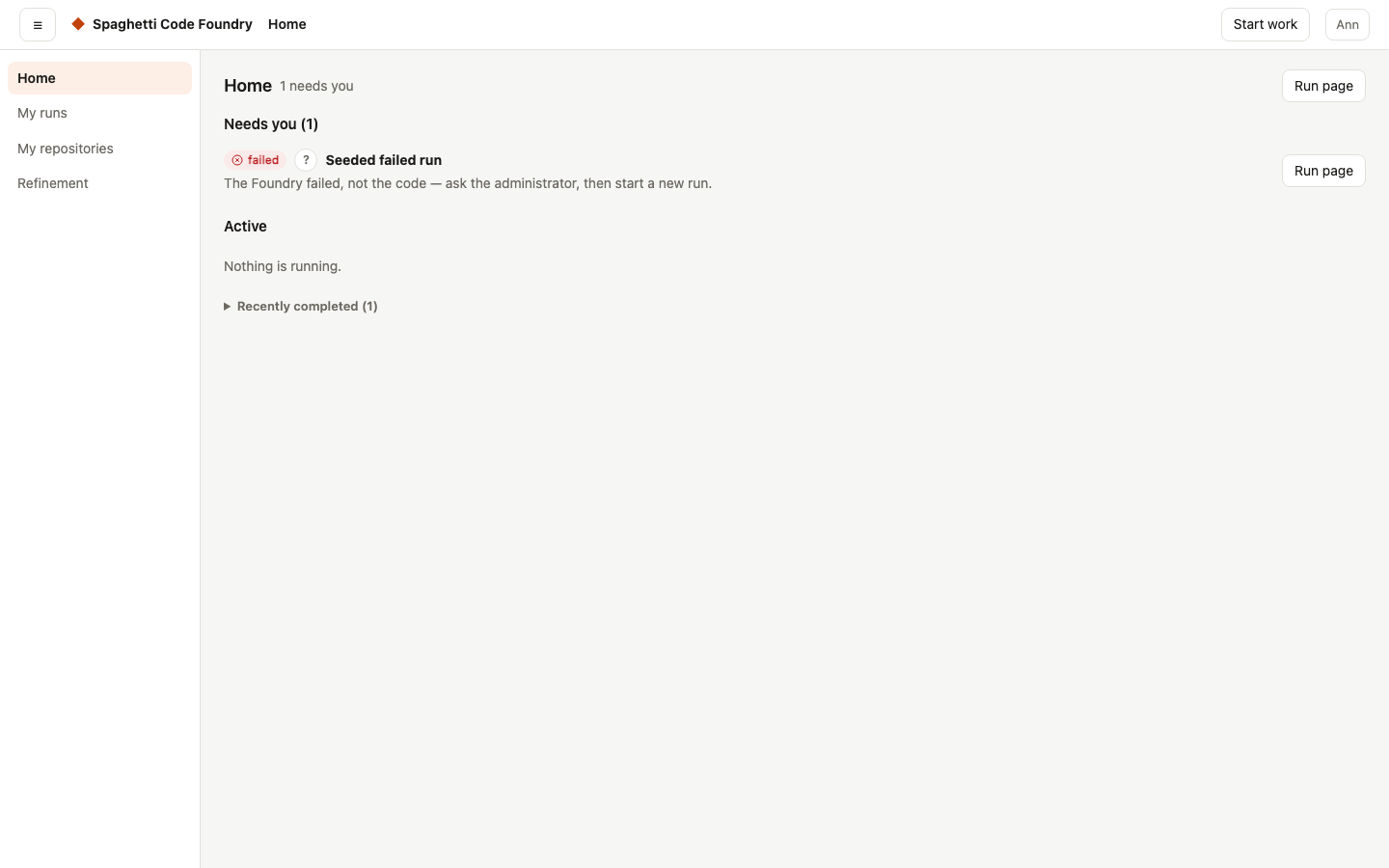
Start work. The page opens with "How do you want to begin?": Start a task now (the form below; chosen by default, and with a kept draft it says so and opens it), Refine an idea first and Refine an existing issue (both open the new-session dialog with that kind chosen), and Continue a refinement session (goes to Refinement). The read-only preview shows no choice that makes a session. Starting a task is three steps on one page. (1) Pick a flow: every published flow shows its title and description; the first is chosen. While the flows load, a grey placeholder shows under the heading. With none, the page says "No flows yet. Ask your administrator to publish one." (an admin sees "No published flows yet. Publish one in the flow editor." with a link to the editor). If the flows cannot be loaded, the page says what happened and has Retry; without permission it says so. (2) Pick the repository, when the flow has the input github_repo: your GitHub repositories as owner/name, each with its status (Connected, Failed or Not tested yet). Add repository opens the usual dialog; afterwards the list is loaded again and the new repository is chosen. While the list loads, step 2 shows a placeholder and Start is off. With no repository the page says so and offers Add repository. If the list cannot be loaded, step 2 says so with Retry; flows that need no repository still work. If the flow fixes the repository, it is shown and cannot be changed; with no repository field there is no step 2. (3) Fill in the details: a Task box when the flow uses the task, then each field the flow asks for, with its help text and default and "(required)" where it must be filled in; fixed fields are shown as text. Review checks the form and shows a review page; Start on that page starts the run and opens its page (see Review before start). An empty required field shows a message and nothing is sent; if the server refuses, an alert under the form explains what happened, what is safe and what to do. What you typed stays, Start is on again, and a second Start sends the same values. If the server did not answer or failed, the run may have started: check My runs first. The read-only preview shows no Review, Start or Add repository. While the call runs the button is off. Each flow keeps what you typed when you switch to another and back. You can reach every control with Tab and send the form with Enter, or with Ctrl/⌘+Enter in the Task box.
My runs. Your runs as cards, newest first, with the ones that need you on top. A card shows the status (with its "?"), the flow, the first line of the task, the repository and issue, one sentence about what happens next, and when it started. The flow name is a link: reach it with Tab and open it with Enter. A queued run says "n runs ahead of you" and has a Remove button; it asks first, and the run does not start. The list refreshes by itself every 30 seconds and only redraws when something changed. While it loads you see placeholder cards. If a refresh fails, the cards stay and a note says "Could not refresh. Showing data from …" with Retry. If the list cannot be loaded at all, you see the reason with Retry. With no runs it says "No runs yet." and offers Start work. Above the cards a bar lets you search and filter your runs, as on the admin Runs list but without the Owner select: a search box, Repository, Flow, Status and Time, "Only what needs me", Show buttons (with Archived) and Clear filters. Failed, Completed and Archived runs can be selected and archived in one go (see The runs list). The filter is kept in the address (#/runs?q=…); owner there is ignored. Search, repository, flow, status and time are asked from the server, so older runs are found; when 200 runs match, the list says "Only the newest 200 matches are shown." With no match it says "No runs match your search and filters." The preview opened with View as user can filter too.
The run page. A header at the top stays in place when the run updates. It shows the task as the title, the status with its "?", the repository and issue or PR, the branch, when the run started and how long it ran (or has been running), and "resumed N×". Under it come the failure card or Now. The page also shows Now (what happens next, and the step the run is at, with what that step does). Below it are five tabs: Overview, Steps, Changes, Evidence and Logs. Overview is the default; a failed run opens on Steps once, unless you already chose a tab. The tabs work with the mouse and with Left and Right arrow keys. A live update never changes the tab you are on, closes what you opened or moves your scroll position, and text you are typing in the answer form stays. Overview shows the whole task, the questions of a run that stopped, the details (run id, flow and flow version; an administrator also sees the workspace) and a short count such as "3 of 5 steps done, 1 failed". On the user display the answer form and Answers given are here. Steps is a timeline in time order: run started, each finished step (passed or failed, visit number, how long), "Waiting for approval" with its message, "Running <step>", each answer given and the end of the run. Sub-steps are indented under their step, and each row has a plain label, not just a step id. An administrator can open a step for its error under Details and its output or transcript, which load when first opened (tool calls stay closed until clicked); a user sees plain rows with a one-sentence error. Open steps stay open and loaded when the run goes on, and the scroll position does not move. A failed run opens its failing step once. It says "No steps finished yet." while the run is going and "No steps recorded." for a finished run with none. Changes shows what the run changed, or a line that there is nothing; it loads when you first open it, when you press Refresh, and when the run finishes, and open files stay open. Evidence shows only what the run already has: the questions asked and the answers given, with their time; the result of each finished shell or approval step (passed or failed, how long, and the error in one sentence); the link of the next step (the issue or pull request); and, for a failed run, Already tried. With none of these it says "No evidence recorded yet." Logs is the live log: the full log for an administrator, the filtered log for a user. Buttons show when they apply. Approve and Reject open a dialog with an optional note, for a run that waits for your decision. Retry from the failing step is for a run that failed, stopped or was cancelled and has a step to continue at; it is the one filled button, except while the answer form is shown (then Send answer is the main action). Cancel is for a run that is running, waiting or queued, and asks first; a run that is queued can only be cancelled. If the server refuses an action, its sentence is shown and the page stays usable. A run from an architect session is continued from that session, so it has no Approve, Reject or Retry here. A failed run shows what happened, why and what you can do. A run that stopped because the planner has questions shows them as text under Questions: the planner's own text, the same as in the comment on the issue. The page shows the first 4,000 characters; a longer text is cut, and the whole text is in the comment. "Retry from step…", the owner, costs and raw details belong to the admin display. While the run loads you see a placeholder page. If the run does not exist (or was removed) you see "This run was not found. It may have been removed." with a link back; if you may not see it, you see that, with a link back; any other failure shows the reason with Retry. If the live connection to the run is lost for good, a red banner says "Lost connection to the run stream" with Reconnect. The page keeps showing the last head, steps and log; Reconnect opens the stream again, and the banner goes when the next update arrives. If the changes cannot be loaded, the reason shows in that place with Retry.
Keyboard. Every link and button can be reached with Tab and shows a focus mark. A dialog takes the focus when it opens, keeps Tab inside, closes with Escape, and gives the focus back to the button that opened it. On a narrow screen the top bar wraps and a wide table scrolls inside its own box. In the flow editor, the library and the Start work forms, every field has a name for screen readers. In the graph, Tab moves between steps and Enter or Space selects one. If a required field is empty on Start work, the message is announced, the field is marked invalid and the focus moves to it.
| Where | Keys |
|---|---|
| Whole page | Tab and Shift+Tab move between controls. Enter opens a link or presses a button; Space presses a button. Ctrl/⌘+K opens Search, also from a form field. Single-key shortcuts (below) work only outside form fields and can be switched off. |
| Search | Up and Down arrows move (and wrap), Enter opens, Ctrl/⌘+Enter opens in a new tab and keeps Search open, Escape closes. Tab stays inside. |
| Single keys | / opens Search. g then a letter, within 1 second, opens a page: h Home, b Board, r Runs, e Refinement, p Repositories, f Flows, a Administration, s Start work. Only pages your role has. |
| Dialogs | Escape closes. Tab stays inside. Focus returns to the button that opened it. |
| Help mark (?) | Enter or Space opens, Escape closes. |
| Board | Tab to a card, Enter opens it. |
| Runs table | Tab to the status link in the first cell, Enter opens the run. |
| Run log | Tab to the log, then the arrow keys, Page Up/Down, Home and End scroll it. |
| Editor | Tab moves between fields. Escape closes its dialogs. |
| Forms | Tab moves between fields. The arrow keys change a select. Enter sends the form. |
Search. The Search button in the top bar, Ctrl/⌘+K (also from a form field) or / opens a box with a list under it. With no text it shows Recent, Go to (pages) and Actions. With text it also shows what the server finds: runs, repositories, refinement sessions and flows, and for admins issues. A user sees only their own things and the flows they can start; an admin sees all accounts. A result shows its title and, when known, its status, repository, owner and last activity. Search only opens things: a page, a run, Start work, New refinement session. It changes nothing. A flow result on the user display opens Start work with that flow chosen (what you typed is kept); a repository result opens the list with that row selected. Recent items are kept in this browser, for each account, as ids only (no titles, 8 at most), and are shown only if the server still lets you see them. In a view-as preview there are no recent items and no "New refinement session". If search is not available, the box says so and pages still work. The single-key shortcuts never act inside form fields or while a dialog or the menu is open. A checkbox in Search switches them off for this browser; Ctrl/⌘+K always works.
Pages that refresh themselves. Your focus stays on the same control after a refresh. If that control is gone, focus moves to the page heading. A refresh waits while a select or text field in it has focus, or while a dialog is open. When a run changes status while you look at it, a screen reader announces it once. The run log is read out politely as lines arrive. The Board also keeps its scroll, up and down and sideways, when it redraws, and shows "Updated HH:MM". If a refresh fails, the cards stay and a message says "Could not refresh. Showing data from …" with a Retry button; the next good refresh removes it. A hidden browser tab makes no requests; when you come back, the Board refreshes once. On the admin Home, Needs you and Active refresh on their own, so one failing does not stop the other, and each has its own Retry. If only the health request fails, Problems keep the last answer and show "Problems could not be refreshed. Showing the last answer." until the next good answer.
Under the top bar of the admin page (not on the user display) is the health line. It says "All good", or names what is wrong with the Foundry itself, and on the right when each repository was last checked.
The day in four steps#
- Put the build label on your issues on GitHub (or let a watcher's schedule do the work).
- Open Home. Answer questions and approve risky plans; one button each.
- Look at Board when you want to know where a story is and why.
- Merge the daily release pull request when it shows up under Needs you on Home.
Everything else continues by itself.
Everything the UI does is also available from the command line (see section 9).
Old and new interface#
How to switch. There is nothing to switch. After the update every account sees the new interface. A setting to go back is not built.
What moved where.
| Before | Now | Address |
|---|---|---|
| Your turn | Home (Needs you) | #/your-turn |
| Library | Flows → Library | #/library |
| My repositories | Repositories → My repositories | #/repos |
| All repositories | Administration → All repositories | #/all-repos |
| Credentials | Administration → Credentials | #/credentials |
| Users | Administration → Users | #/users |
| Watchers | Administration → Watchers | #/watchers |
| Models | Administration → Models | #/models |
| Problems | Administration → Problems | #/problems |
| Dashboard | Administration → Dashboard | #/dashboard |
| Audit | Administration → Audit | #/audit |
| Settings | Administration → Settings | #/settings |
Start work is now a button in the top bar.
When the old one goes away. It already has. The old menu was replaced in place, and all old addresses keep working.
More. The state of the rollout is in ui-redesign/rollout.md.